Code your interviews the way you would in a dedicated qualitative analysis tool, then take the codebook straight into your report or your analysis software. AI can draft a first codebook from your interviews, and nothing changes until you accept it.
What you can do
- Build a tree of themes, codes and sub-codes, each with its own colour and description.
- Code a transcript passage by selecting it, right on the participant's page.
- Let AI draft a codebook from your interviews and suggest passages for each code.
- Merge codes, and undo any change from the codebook's history.
- Export to Excel, Word or a .qdc file for NVivo, MAXQDA and ATLAS.ti.
How it works
Turn on the codebook for a project
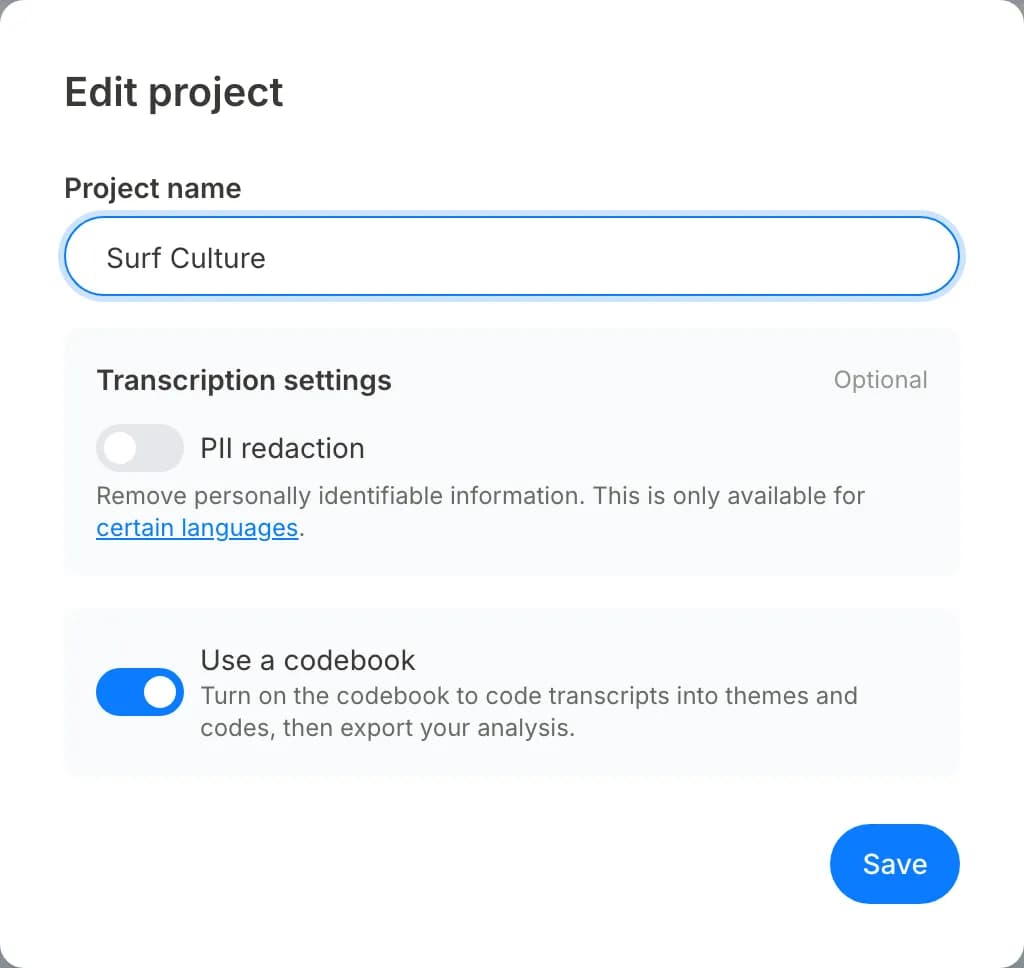
The codebook is switched on project by project, so you don't need to ask anyone to enable it. Anyone who can edit the project can turn it on. Once it is on, Codebook appears in the project's side menu and a Codes tab appears on each participant's page.
The codebook is in Beta, so Use a codebook and Codebook in the side menu are marked Beta while we keep improving it.
- In All projects, click More options on the project and choose Edit.
- Switch on Use a codebook.
- Click Save.
Code transcript text
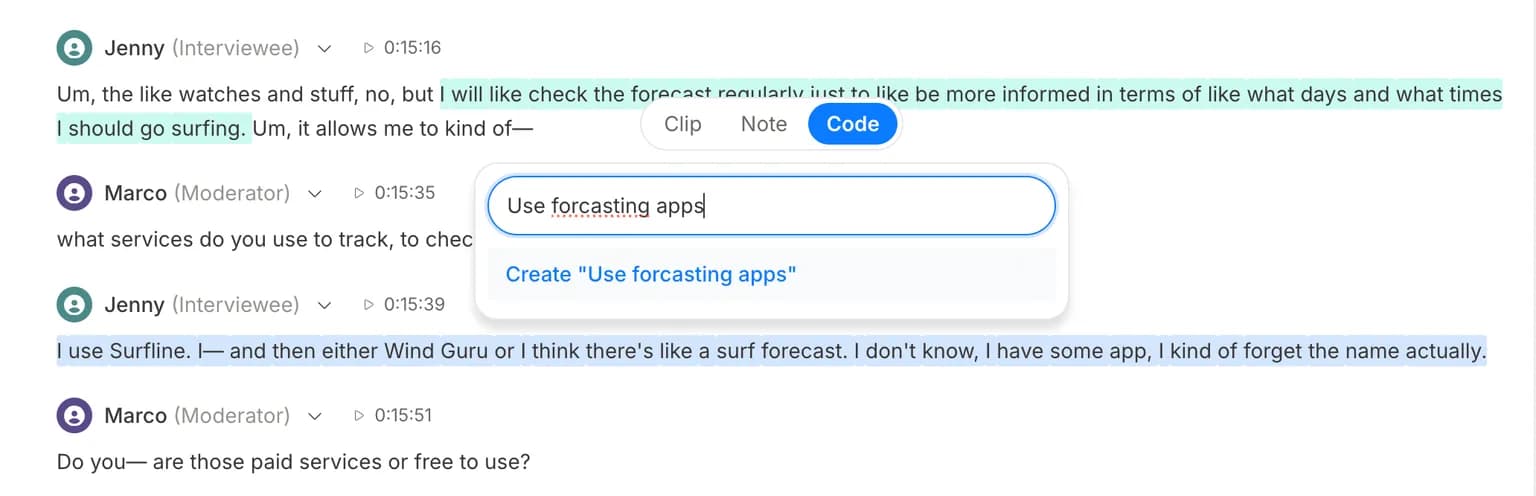
Coding a passage turns it into a highlight under a code, linked to that moment in the interview. You can add as many codes to a passage as it needs.
- Open a participant from Participants and select a passage in the transcript.
- In the pop-up, choose Code.
- Pick a code, or type a new name in Type a code name and press Enter.
Draft a codebook with AI
Start from a draft instead of a blank page. When a project has no codes yet, AI reads your interviews and proposes themes and codes with descriptions, which you edit like any others. On a participant's Codes tab, Suggest codes proposes passages for your codes, and you accept or reject each one.
- Open Codebook and click Draft with AI.
- Check which interviews will be read.
- Click Draft.
Organise your codes
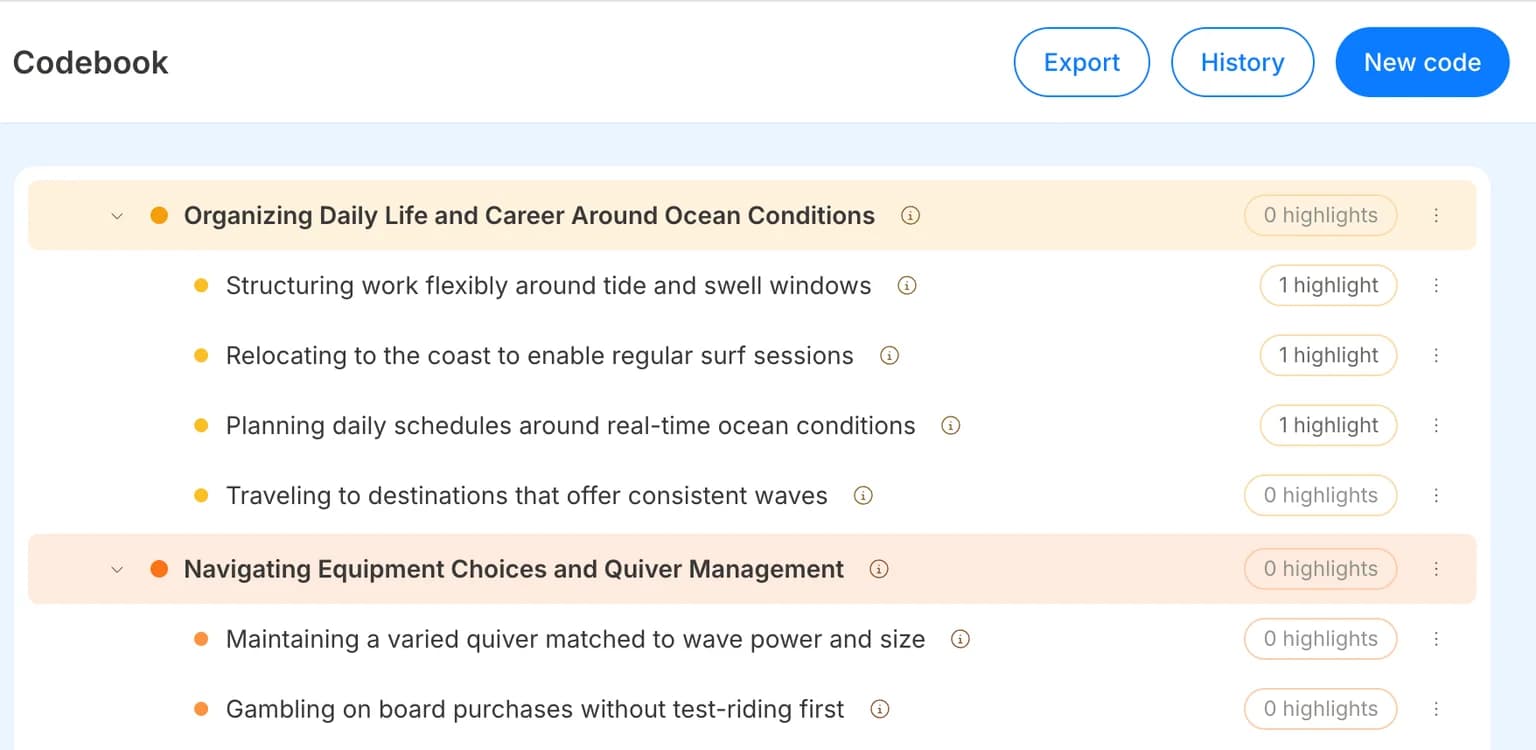
Your codebook is a tree: themes at the top, codes and sub-codes nested under them, each with its own colour and a count of its highlights. Reshape it as your analysis develops. Nest a code under another one, and merge codes that turn out to mean the same thing. Every change is kept in History, so you can undo it.
- To nest a code, hover over its colour dot until it becomes a drag handle, then drag it onto the code it belongs under.
- To merge, tick two or more codes, click Merge in the bar at the bottom, and choose which code to keep.
- To undo a merge, open History and click Unmerge.
Export your codebook
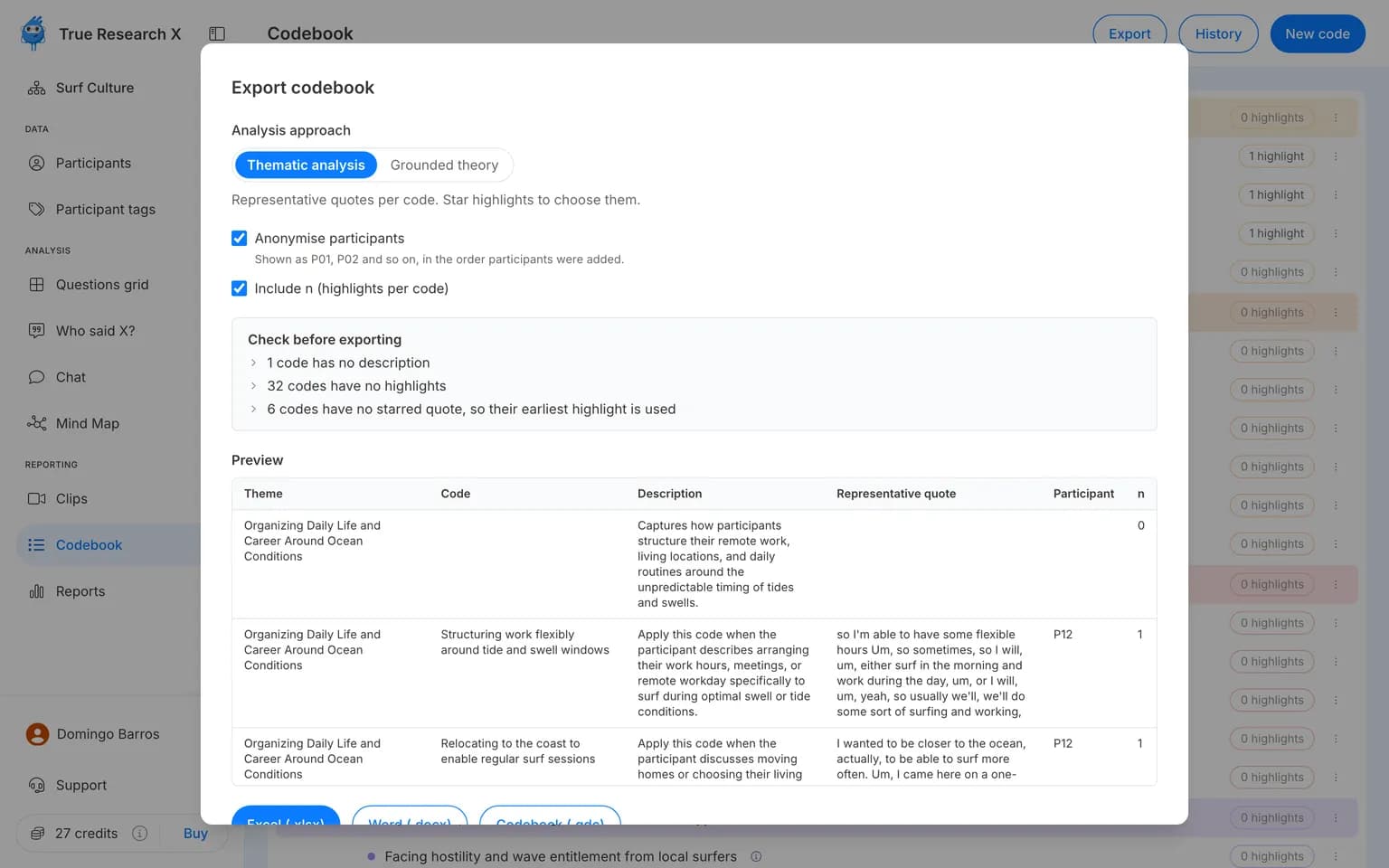
Take your codebook wherever the analysis goes next. Choose Thematic analysis for representative quotes per code or Grounded theory for every highlight with counts, and anonymise participants as P01, P02 and so on. The .qdc file carries your codes and hierarchy into NVivo, MAXQDA and ATLAS.ti.
- In Codebook, click Export.
- Choose an Analysis approach and check the Preview.
- Click Excel (.xlsx), Word (.docx) or Codebook (.qdc).