Hand your client a polished report they read in the browser, where the findings are told in your participants' own words and faces. You build it from ready-made sections in minutes, and you decide exactly who can open it.
What you can do
- Build a multi-page report from ready-made sections, with no design work.
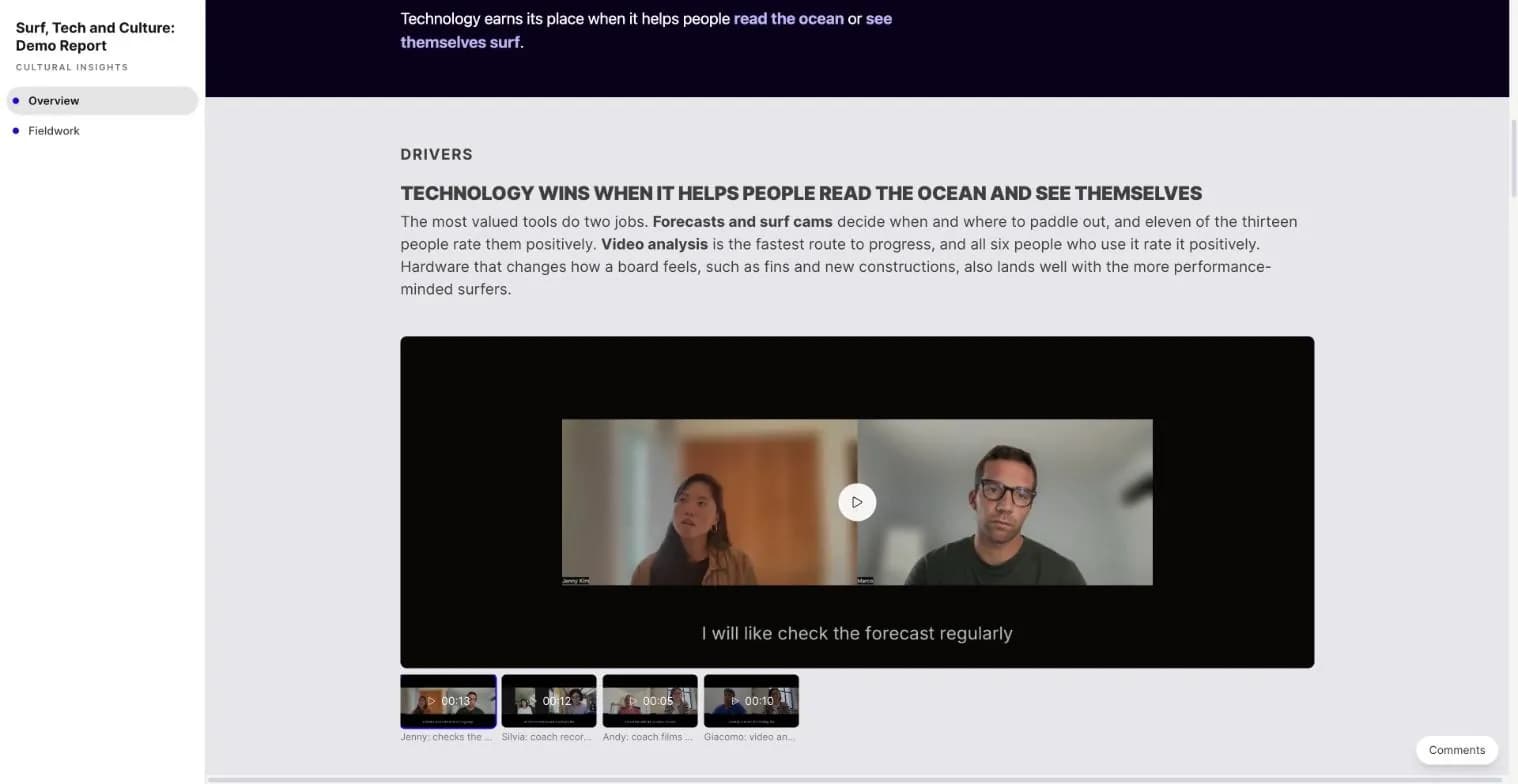
- Play subtitled participant clips right next to the finding they prove.
- Add quotes, images and participant cards straight from your project.
- Set fonts, colours and navigation once for the whole report.
- Share by invitation or with a password, and see who opened it.
- Collect comments from your team and your client beside the text.
See what your client will see: Open the live demo report.
How it works
See a finished report
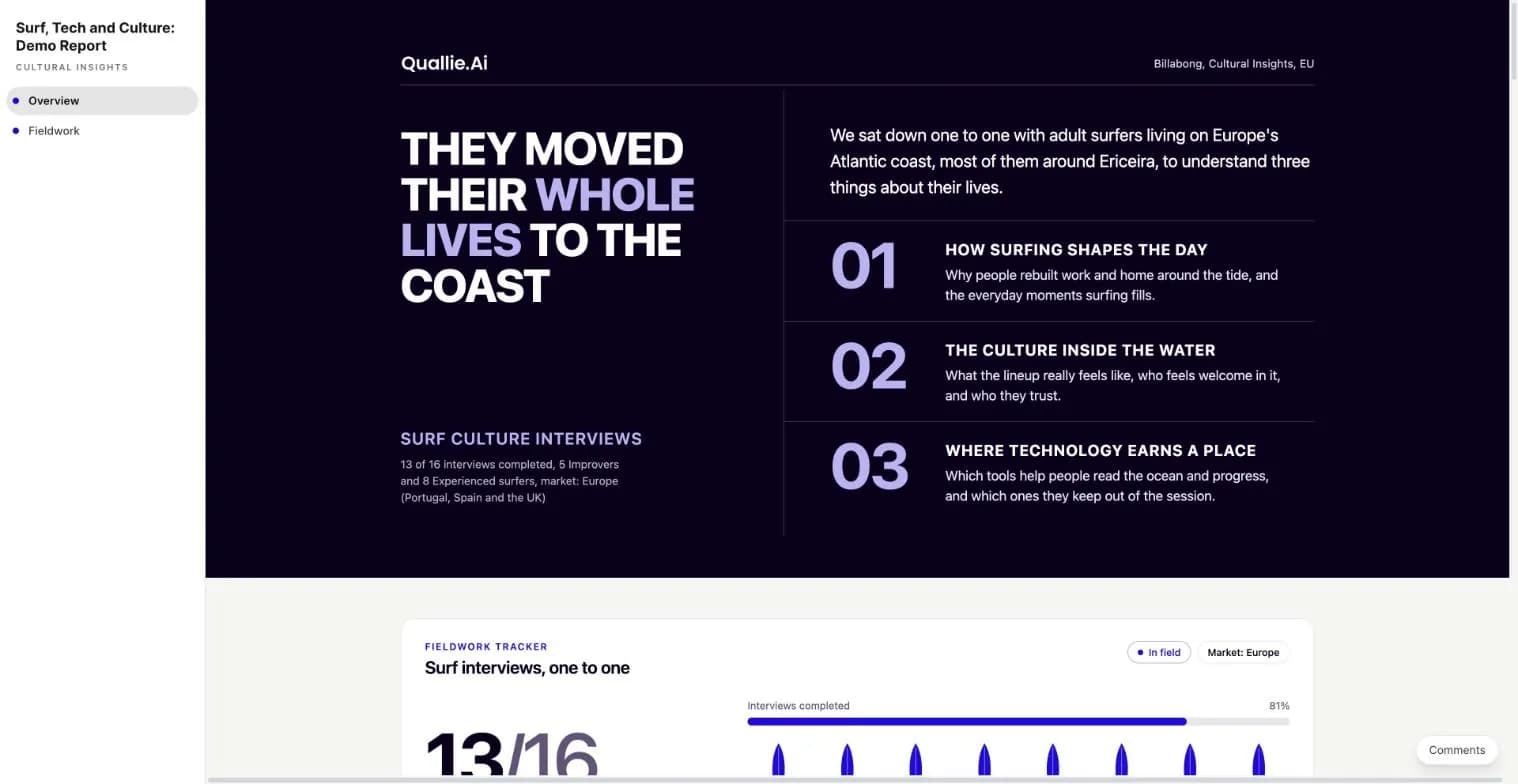
The demo report turns a study of surfers on Europe's Atlantic coast into a finished, client-ready document. It opens with the headline finding and three themes, then lets the reader move page by page from the overview to the fieldwork.
Create a report
This feature is enabled per workspace. If you don't see it, contact us through Support in the side menu.
Every report lives inside a project, so its clips and participants are one click away. Start blank or from one of your workspace's templates.
- Open the project and select Reports in the side menu.
- Click New report and choose Blank report or a template.
- Click Add section and pick a design to start your first page.

Bring in clips and media
Let participants make the case themselves: subtitled clips play inside the report, right under the finding they support. You can also add images, participant cards and video hosted elsewhere.
- Type
/on an empty line and choose Clips. - Pick Quallie.Ai clips to add clips from this project.
- Click Insert.
Share and publish a report
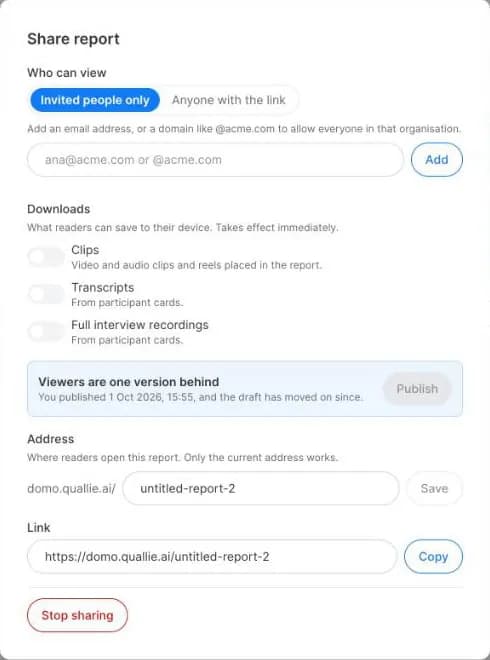
You choose who can open the report, and readers only ever see the version you last published. Invite people by email or by their organisation's domain, or share a link protected by a password.
- Click Share in the top bar.
- Under Who can view, choose Invited people only or Anyone with the link.
- Click Publish, then send your readers the address from Link.